Dice Have No Eyes Controls Guide
Click clean, pad clean, and turn on night mode before greed turns into misclicks.
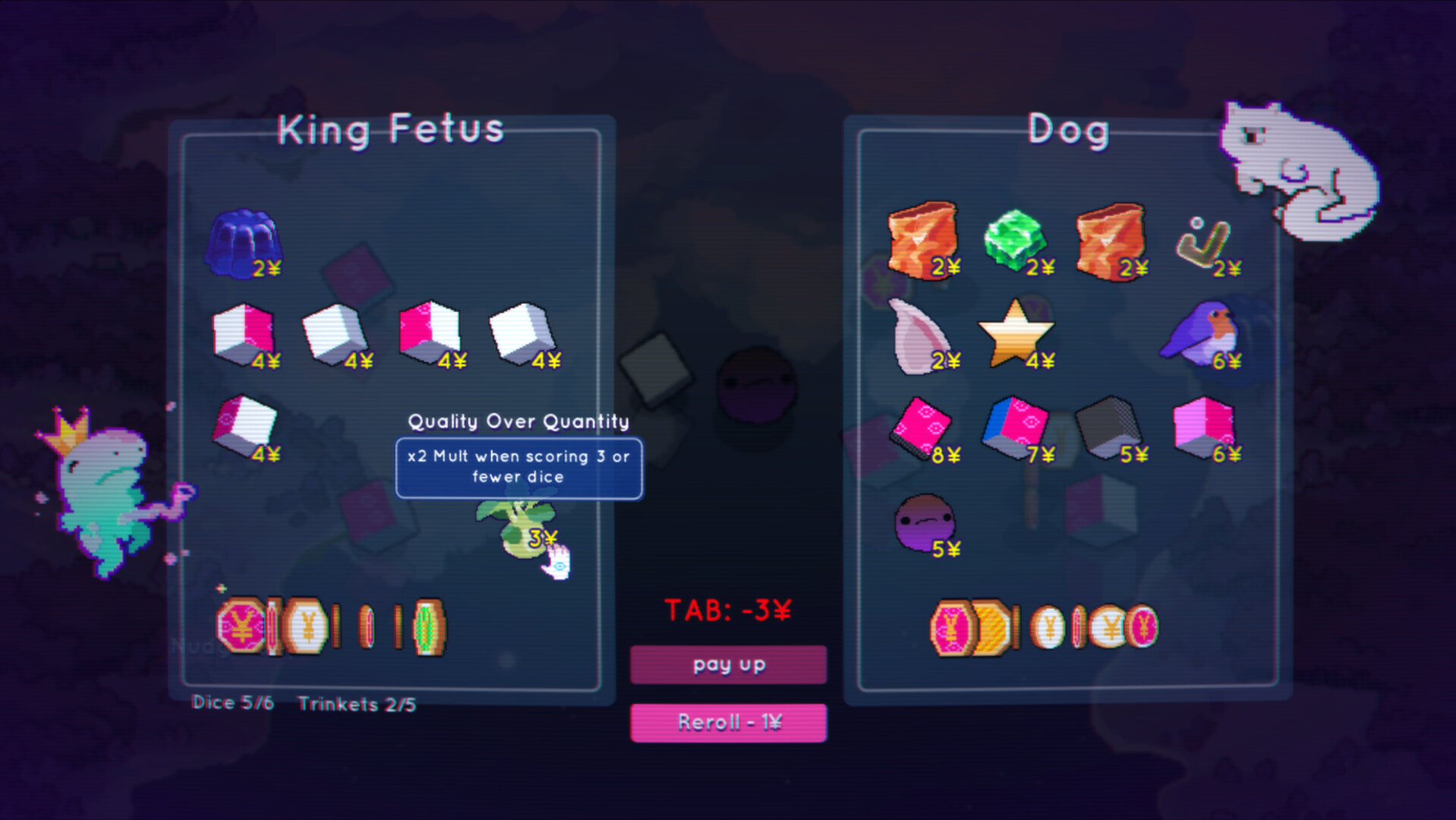
Dice Have No Eyes asks for precise greed decisions: select dice, bank scores, trigger smites, spend snacks, and stop before bust. Bad inputs feel like bad luck. This page covers mouse, keyboard, controller, Steam Deck, and night mode comfort for the 1.0 build. Pair it with System Requirements for hardware and the Tools Hub for the wider setup map.
Design intent: mouse first, pads catching up
During the May 2026 Early Access launch, the developers stated the game played smoothest with mouse, while Steam Deck / gamepad worked but could feel wonky, with support actively improving. Linux ran through Proton with a proper build planned later; macOS was not a focus yet. Version 1.0 (November 20, 2026) explicitly calls out reworked controls and stronger controller, touch, and Deck polish. Read that history as permission to retry pads even if you bounced in May.
Mouse and keyboard — the precision default
Use mouse and keyboard when you:
- Are learning Shallows banking for the first time
- Play Anais and need confident smite timing
- Draft Mirror setups that care which die is “next”
- Hate accidental double-confirm on pads
Practical habits:
- Slow down before banking—one clean click beats a panic mash.
- Hover for item descriptions (Dogs and Guts era UX improvements made this more reliable).
- Keep the cursor away from dangerous confirm buttons while you think.
- Use keyboard only for whatever menu shortcuts your build exposes; do not invent hotkeys the game does not show.
- If you misclick a snack, take a breath before the next roll; tilted clicks chain.
Mouse play still pairs well with a large monitor and night mode for late sessions.
Controller — after 1.0 polish
Controller is viable for couch runs and for players who think better with a pad in hand. 1.0’s control rework is the moment to rebind and relearn instead of copying muscle memory from a wonky EA build.
Controller checklist:
- Confirm the Steam Input profile or in-game prompts match your pad.
- Practice selecting individual dice without overshooting.
- Learn where bank, roll, and consumable confirm live so you never “accidentally greed.”
- Test companion power activation before Faraway Lands bets.
- Recheck bindings after patches—small indies iterate quietly.
If a companion or smite action feels buried, switch back to mouse for that character until the motion is automatic. Ego is not a control scheme.
Steam Deck — Playable with eyes open
Steam rates Dice Have No Eyes Playable on Deck. Community-facing notes mention:
- Occasional mouse/keyboard or non-Deck controller icons
- Small in-game text that can be hard to read
Deck session tips:
- Boost brightness carefully; prefer night mode plus readable brightness over crushing contrast.
- Use the Deck’s scaling options if text feels tiny—comfort beats native-pixel purity.
- Prefer docked mode with a mouse when learning a new face like Tooth Fairy or Anais.
- Handheld is excellent for Shallows warmups and cassette/playlist vibes once you know the kits.
- Mid-run saves in 1.0 are perfect for handheld life—pause before a commute ends mid-bet.
If prompts show the wrong device icons, trust the action, not the art, and report persistent bugs on Discord via the Links Hub.
Night mode — not optional cosmetics
The feature list markets night mode for your poor tired eyes. Treat it as part of controls ergonomics:
- Late-night neon boards encourage rushed rolls.
- Eye strain makes Skip/Mirror selection sloppy.
- Night mode plus lower room lighting keeps sessions longer without pretending you are sharper than you are.
Turn night mode on before God run attempts you care about. Fashion customization and cassettes can wait until inputs feel calm.
Touch and hybrid setups
1.0 mentions touch improvements alongside controller work. Hybrid players (Deck touch plus buttons, or tablet-like setups) should:
- Decide a primary pointing method per session
- Avoid mixing touch selects with pad confirms under time pressure
- Practice one Shallows clear before ranked leaderboard greed
Session flow that prevents input tilt
- Launch, set night mode, confirm device.
- Play one low-stakes Shallows board as a calibration run.
- Only then enter Faraway Lands bets, Rift, or God run.
- If you misclick twice in a row, bank or save mid-run and step away.
- After any control rebind, repeat the calibration run—do not “test” on a max bet.
Character-specific input notes
- Wizard: shield timing rewards deliberate clicks more than speed.
- Anais: smite confirm should be unmistakable; see Anais.
- Dog: many turns mean more opportunities to misclick—slow is smooth.
- Hotdog: one-turn kits punish menu fumbling; pre-plan snack order.
- Companions: know the power button before you need it; Companions.
Accessibility-minded habits (practical, not legal advice)
- Increase OS-level text size if Deck UI remains small.
- Use a brighter pointer on busy pastel boards.
- Prefer headphones with moderate volume; audio cues help, ear fatigue does not.
- Sit so your confirm thumb or mouse hand can rest between rolls.
Related pages
- Tools Hub
- System Requirements
- Version 1.0 for why controls changed
- Getting Started once inputs feel trustworthy
Clean inputs will not beat the God n’ Fate engine alone—but dirty inputs will lose runs the dice never earned.
Frequently Asked Questions
Quick answers to the most common questions.
Is mouse still recommended?
Yes for precision learning and smite-heavy kits. Controllers and Steam Deck are much more viable after 1.0 polish, especially for relaxed sessions.
What are the main Steam Deck caveats?
Playable rating with occasional non-Deck prompt icons and small text. Use night mode, scaling, and mid-run saves to stay comfortable.
Should I use night mode?
Yes for late sessions. Tired eyes cause rushed banks and mis-selected dice as often as bad trinket drafts do.
I keep accidental rolling—what now?
Switch to mouse temporarily, slow confirmations, recalibrate on Shallows, and save mid-run if tilt starts. Recheck controller binds after 1.0.
Where do I check PC specs?
See the System Requirements page under Tools for Steam minimum and recommended hardware.